

Reading this article will help you identify the most common SharePoint storage culprits, understand why they consume so much space, and decide what to keep, optimize, move, or govern differently.
Hello, guys. SharePoint storage problems usually do not appear because somebody uploads one enormous file. More often, storage disappears gradually.
A presentation here. A few years of document versions there. A collection of marketing videos. A ZIP file containing an entire historical project. Before long, the storage meter starts moving in the wrong direction, and everybody begins asking the same question:
What is consuming all our SharePoint storage?
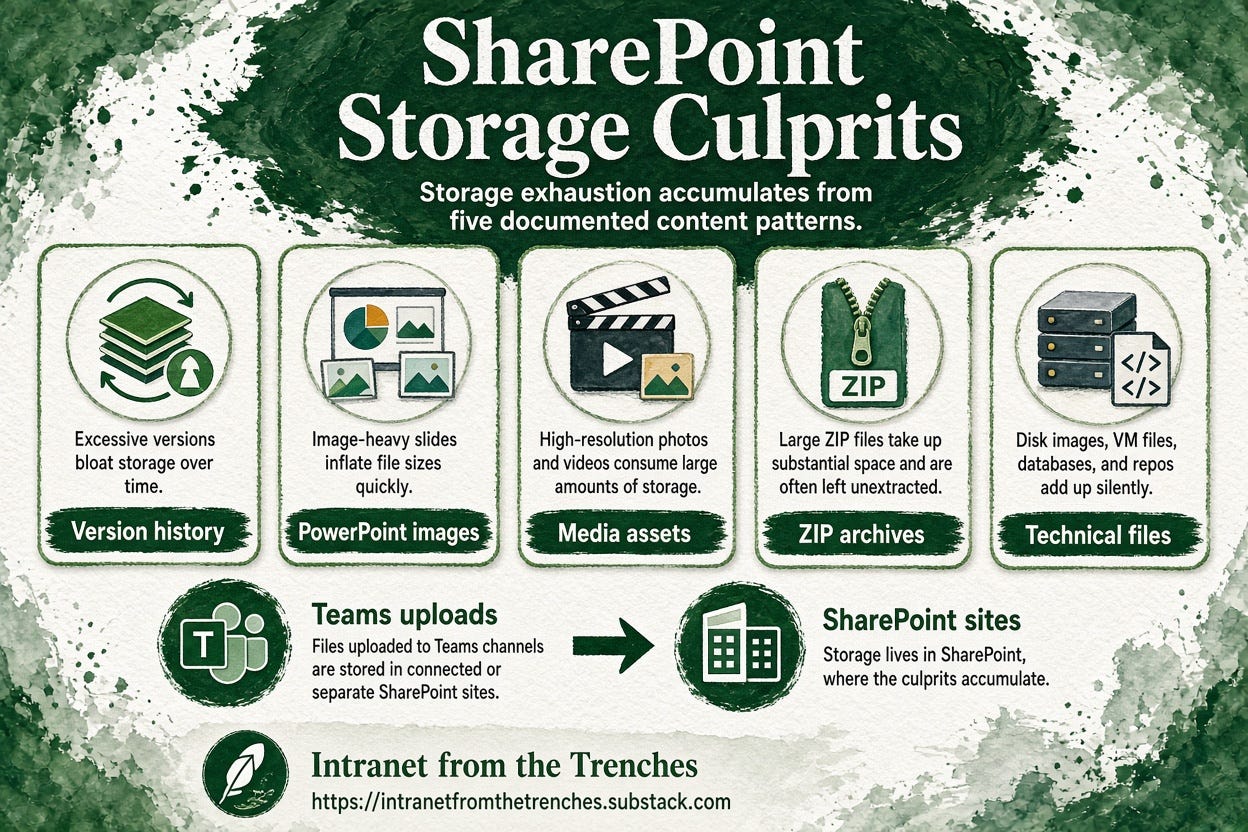
I have been thinking about this recently because SharePoint and Teams are increasingly used as general-purpose file platforms. This is understandable. They are available, searchable, collaborative, and integrated with Microsoft 365.
But that does not mean every type of file belongs there.
Let’s look at the main storage culprits I have encountered and, more importantly, what we can do about them.
Culprit number one: excessive version history
Version history is one of the most useful SharePoint capabilities. It allows us to see previous versions, understand how a document changed, and restore content after an accidental modification.
The problem begins when we keep too many versions of large files.
Imagine a 50 MB PowerPoint presentation that is edited every day. If the library keeps hundreds of historical versions, the document may consume far more than the size users see when they look at the current file.
The same applies to frequently edited Word and Excel files. A document might only be 20 MB today, but years of version history can create a much larger storage footprint. Depending on the file and the way it changes, versions can represent substantial additional copies of the document.
This is especially common in:
Project plans.
Financial workbooks.
Reports with embedded images.
Presentations that are updated every week.
Documents used as informal databases.
Files that are modified by automated processes.
The practical response is not necessarily to disable versioning. That would remove an important safety net. Instead, review the version limits for each library and classify the content.
A working document may need a reasonable number of versions. A compliance-controlled library may require a longer retention period. A temporary collaboration library may not need years of history.
The right question is not, “Should we keep versions?” It is: “How many versions are valuable for this type of content?”
Culprit number two: PowerPoint presentations full of images
PowerPoint files can become surprisingly large. The most obvious cause is high-resolution images embedded directly into slides.
Marketing and communications teams often work with photographs, product renders, screenshots, diagrams, and background images. If those assets are inserted without compression, a presentation can quickly grow from a few megabytes to hundreds of megabytes.
But there is another detail that is easy to miss: images may exist in slide masters and unused layouts.
A presentation can contain content that is not visible on the current slides. An image may have been placed in a master layout, copied into several layouts, or retained after a design experiment. Users may believe they removed the content because it is no longer visible, while the file still contains the underlying assets.
Here is where things get interesting. A presentation can look simple when opened, but its internal package may contain many large images and other resources.
Pro-tip
Before storing a large presentation as a long-term record, open it in PowerPoint and inspect the slide masters, unused layouts, media, and image sizes. Removing unused content and compressing images can make a significant difference.
PowerPoint also has image compression options. These are useful when the presentation is intended for normal screen display rather than high-quality printing.
Of course, compression should be applied carefully. A design team may genuinely need high-resolution assets for production work. But that does not mean every presentation needs to carry the original photography at full resolution.
Culprit number three: media assets
Video files are another obvious but often underestimated storage consumer.
A single high-resolution marketing video can consume several gigabytes. Add multiple language versions, draft edits, subtitles, raw footage, audio tracks, exports, and source project files, and a SharePoint site can grow very quickly.
The same applies to high-resolution photography and design assets. SharePoint can store these files, and users can collaborate on them, but that does not automatically make it the best long-term media platform.
For active collaboration, storing media in SharePoint may be perfectly reasonable. The concern is usually the unmanaged accumulation of old versions and source material.
Ask a few practical questions:
Is this file still actively being edited?
Do users need to collaborate on it in Microsoft 365?
Is it a final published asset or a working source file?
Is there a better digital asset management platform?
Does the organization need cold storage for historical content?
A specialized media platform or cold-storage solution may be more appropriate for large, rarely accessed assets.
The important point is not that SharePoint cannot store videos. It can. The point is that storage architecture should match the content lifecycle.
Culprit number four: large ZIP archives
ZIP files often create a false sense of efficiency.
Somebody compresses ten years of project documents into a single archive and uploads it to SharePoint. The original files may have occupied a large amount of space, but the ZIP file is still large. Compression reduces size; it does not make a massive archive disappear.
There is also a governance problem. Once the files are inside a ZIP archive, SharePoint cannot provide the same experience for search, metadata, content classification, or individual file lifecycle management.
Users may be unable to find a specific document without downloading the entire archive. Retention and sensitivity controls may also be much less useful when applied only to the outer ZIP file.
A quick note from the trenches
A ZIP file is an archive, not a content strategy. It may be useful for transport or short-term packaging, but it is rarely a good replacement for a structured document library.
Before uploading a large archive, determine whether the contents should be extracted, classified, retained, or moved to a dedicated archive platform.
Culprit number five: technical files
SharePoint is sometimes used as a convenient place to store technical files that were never designed for normal document collaboration.
Examples include:
Disk images.
Virtual machine files.
Database backups.
Application installers.
Source-code repositories.
Build artifacts.
Large log collections.
Development environment snapshots.
These files can be extremely large, and they often change in ways that make version history even more expensive.
A database backup may be uploaded every night. A virtual machine image may be copied after every major change. A source-code repository may be compressed and uploaded repeatedly for cataloging or backup purposes.
At first glance, this may appear practical. SharePoint is secure, integrated, and already available. But the platform may not be the right place for operational backups or high-volume technical storage.
Dedicated backup platforms, artifact repositories, source-control systems, Azure Storage, or other specialized services may provide better performance, cost, retention, and recovery options.
SharePoint can still store the documentation around these assets: architecture diagrams, recovery procedures, ownership information, and links to the authoritative system.
Conclusion
SharePoint storage exhaustion is rarely caused by one mysterious issue. More often, it is the result of several familiar patterns:
Too many versions of frequently edited documents.
PowerPoint files containing oversized or unused images.
High-resolution videos and marketing assets.
Large ZIP archives containing years of files.
Technical files such as virtual machines, databases, disk images, and source-code backups.
The answer is not to avoid SharePoint. SharePoint is an excellent collaboration and content-management platform. The answer is to use it intentionally, with a clear understanding of content lifecycles, version history, governance, and platform capabilities.
Take a look at your own environment. What is consuming the most space? Are your largest files genuinely valuable, or are they simply convenient leftovers?
Share this article with your colleagues, leave a comment with the biggest storage culprit you have found, and let me know how your organization manages large technical and media files.
See you in the trenches! 🚀