

Reading this article will give you a practical way to challenge your SharePoint environment and discover confidential information that may be exposed through search, document history, hidden spreadsheet content, or deleted files.
Hello, guys. One of the most useful exercises we can perform as Microsoft 365 administrators is also one of the simplest: search our own environment as if we were trying to find information that should not be easy to find.
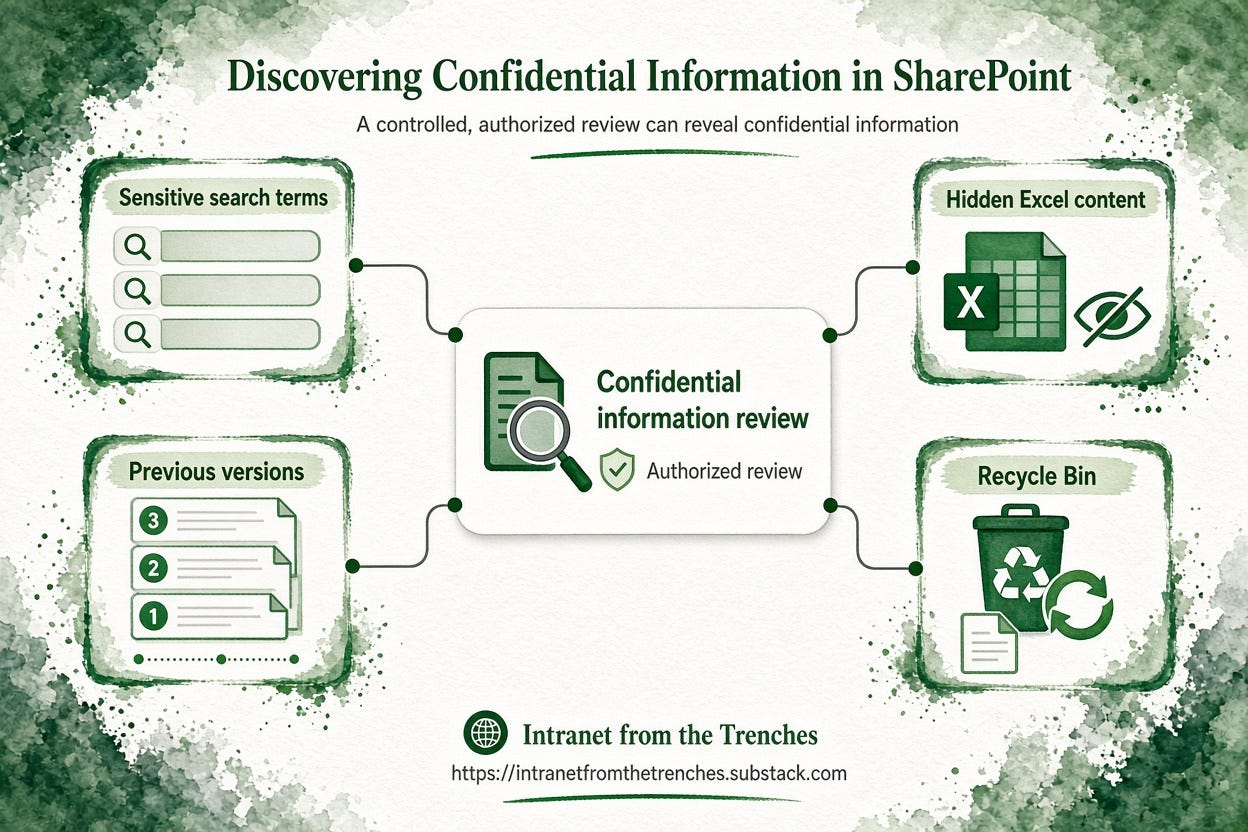
I am not talking about bypassing permissions or looking at data we are not authorized to access. The idea is to perform a controlled security review in an environment where we have the appropriate permissions, approval, and business context.
A few carefully chosen searches can reveal documents, versions, and files that nobody realized were still accessible. This is where things become interesting. SharePoint may be working exactly as designed, while the organization’s processes around it are not.
Start by thinking like a curious user
When I review a Microsoft 365 environment, I do not begin with complex scripts or advanced security tools. I begin with a question:
What would an ordinary user be able to discover if they searched for something sensitive?
This is important because confidentiality problems are not always caused by a technical vulnerability. Quite often, the information is available because a file was shared with the wrong group, inherited permissions were never reviewed, or an old document was left in a location that is still searchable.
A practical review should always be authorized and documented. Define the scope first:
Which SharePoint sites are included?
Which accounts or test users will be used?
What information is considered confidential?
Who will review the results?
How will findings be reported and corrected?
A quick note from the trenches
The objective is not to “hunt” for embarrassing content. It is to understand what your users can discover and whether that access is appropriate. Keep the exercise controlled, respectful, and focused on improving the environment.
Search for sensitive business terms
The first test is surprisingly effective: search for words that commonly appear in confidential documents.
Depending on your organization, useful search terms might include:
salarysalariesincomebenefitsbudgetforecastcontractagreementacquisitiondealcredentialspasswordsecretbank accountcustomer list
These searches can be performed through Search, or an approved compliance and security investigation process. The exact tool depends on the role of the person performing the review and the organization’s policies.
The results are not automatically a problem. A document containing the word “budget” might be a public departmental planning document. A file containing “credentials” might be a security awareness guide. Context matters.
The important questions are:
Who can access the document?
Is the location appropriate?
Is the content still required?
Is the document shared externally?
Does the file contain more information than the title or search result suggests?
This last question is often where the surprises begin.
Hidden information in Excel files
Excel workbooks deserve special attention. Users frequently hide worksheets, columns, and rows to make a report easier to read. Sometimes this is perfectly harmless. In other cases, hidden content includes salary calculations, internal assumptions, customer data, or financial details that were not intended for the audience receiving the file.
A hidden worksheet is not the same as protected information. It is only hidden from normal view.
Content inside an Excel workbook may still be indexed and surfaced in search. This means that someone might find a workbook by searching for a term that does not appear anywhere in the visible report.
For example, imagine a workbook called Quarterly Business Review.xlsx. The visible sheet contains a few charts and summary figures. However, a hidden worksheet contains:
Employee compensation data
Internal profit margins
A list of customer discounts
Notes about a future acquisition
A user may not see those details when opening the main worksheet, but the information can still create a risk if the workbook is shared too broadly or processed by search and compliance services.
Pro-tip
Treat hidden Excel content as a presentation convenience, not a security control. If information must be protected, remove it from the workbook or protect access through permissions and appropriate information protection controls.
A good review process should identify important workbooks and inspect their structure. Look for hidden sheets, hidden rows and columns, comments, notes, formulas, named ranges, and external links. Also remember that copying a visible report into a new workbook may not remove all the original information if users continue working from the source file.
Previous versions may still contain confidential content
Here is another area that is easy to forget: document version history.
A user might remove confidential information from a document and publish a cleaned-up version. From a normal reading perspective, the information appears to be gone. However, if version history is enabled, the older version may still contain the original content.
Whether a user can access previous versions depends on permissions and the configuration of the SharePoint library. In many environments, users with edit permissions can view or restore earlier versions. This is useful for collaboration, but it also means that version history should be included in a confidentiality review.
Consider this example:
A project team uploads a contract containing pricing details. Later, they remove the pricing section and share the document with a wider group. The current version looks safe, but the previous version still contains the original pricing information.
This is not necessarily a defect. Version history exists to support recovery and accountability. The issue is whether the retention and access model matches the sensitivity of the content.
Review the versioning settings of important libraries and discuss questions such as:
How many versions are retained?
Who can view previous versions?
Are major and minor versions being used?
Should confidential libraries have a different policy?
Is the information subject to retention or legal hold?
A quick note from the trenches
“Deleted from the current version” does not always mean “no longer available.” When investigating exposure, always consider document history and the permissions required to access it.
Do not forget the Recycle Bin
The Recycle Bin is another area that deserves attention. In SharePoint, deleted files may remain available for a period of time before permanent deletion. Depending on permissions, users may be able to view or restore items they or others have deleted.
This creates a practical scenario: a confidential file is uploaded to the wrong library, discovered later, and deleted. The file disappears from the active document library, but it may still be recoverable from the Recycle Bin.
SharePoint also has a second-stage Recycle Bin managed by site collection administrators. This means that deletion is a process rather than an immediate disappearance. Retention requirements, legal holds, and recovery settings may also affect how long content remains available.
During an authorized review, check:
Whether users can access the first-stage Recycle Bin
Who can access the second-stage Recycle Bin
How long deleted content is retained
Whether deleted files are included in investigations
Whether sensitive content was removed from all relevant locations
The goal is not to delete everything immediately. Sometimes the organization needs that recovery capability. The goal is to understand the exposure and make sure the behavior is intentional.
What should administrators do with the findings?
Finding confidential information is only the beginning. The next step is to classify the issue and decide on a sensible response.
A useful process might include:
Confirm the exposure
Verify what information is available and to whom.Identify the cause
Was the problem caused by oversharing, inheritance, an old site, version history, or user behavior?Assess the impact
Determine whether the information includes personal data, financial information, credentials, contracts, or regulated content.Correct the immediate problem
Adjust permissions, move the file, remove unnecessary content, or apply an appropriate sensitivity label.Improve the process
Update training, review site ownership, configure retention appropriately, or introduce regular access reviews.
Microsoft Purview can help organizations discover sensitive information through sensitive information types, Data Loss Prevention policies, retention policies, and audit capabilities. These tools are valuable, but they work best when combined with clear ownership and practical governance.
Technology can identify a risky file. Someone still needs to decide whether the file belongs there.
Conclusion
SharePoint search, Excel content, version history, and Recycle Bin items can reveal information that users believe has been hidden or deleted. In many cases, the platform is behaving correctly. The real challenge is aligning permissions, content lifecycle, and user expectations.
If you manage Microsoft 365, consider running a controlled discovery exercise in your tenant. Search for sensitive terms, inspect representative Excel files, review document versions, and understand who can access deleted content.
I would also love to hear about your experience. Have you discovered confidential information in an unexpected SharePoint location? Did the issue involve search, permissions, version history, or the Recycle Bin?
Share this article with your colleagues, leave a comment, and tell me what you have found in the trenches.
See you in the trenches! 🚀